Simple Fasting App · Directions
How to use Simple Fasting App
From your first timer to reviewing your history, here is how to use Simple Fasting App, one step at a time.
There is no account to create. Open the app, choose your plan, and start when you are ready. Your fasting records stay on your device.
English guide for version 1.4.3. Real app screenshots use sample fasting records. Appearance and system labels can vary with your device, language, and app version.

Start your first fast
- Open Fasting, the timer tab at the bottom of the screen.
- Check the plan shown inside the dial, such as 16:8. Tap that area if you want to choose a different plan.
- Tap Start fasting. The status changes to Active, and the dial shows your progress.
- If you began fasting earlier, tap Start beneath the active dial to correct the time. Adjust End if needed, then tap Save.
The bottom navigation takes you between Fasting, History, and Settings. On iPad and supported Duo layouts, the same controls use the extra space. Rotate your iPad or unfold a supported device for roomier panels; scroll a panel if its content extends below the screen.
Choose a plan that fits your routine
- Before starting a fast, tap the plan area in the dial to open Fasting plan.
- Choose 12:12, 16:8, 18:6, 20:4, or 24:0. The first number is the fasting duration in hours; the second is the eating window in a 24-hour day.
- For a custom plan, enter a whole number of hours in the custom fasting duration field. The supported range is 1–72 hours.
- Tap Apply plan or Done, check the duration on the timer, then tap Start fasting.
The app’s plan picker is available while you are not fasting. To adjust a fast already in progress, use its start or end time as described below.

Adjust your start or target end time
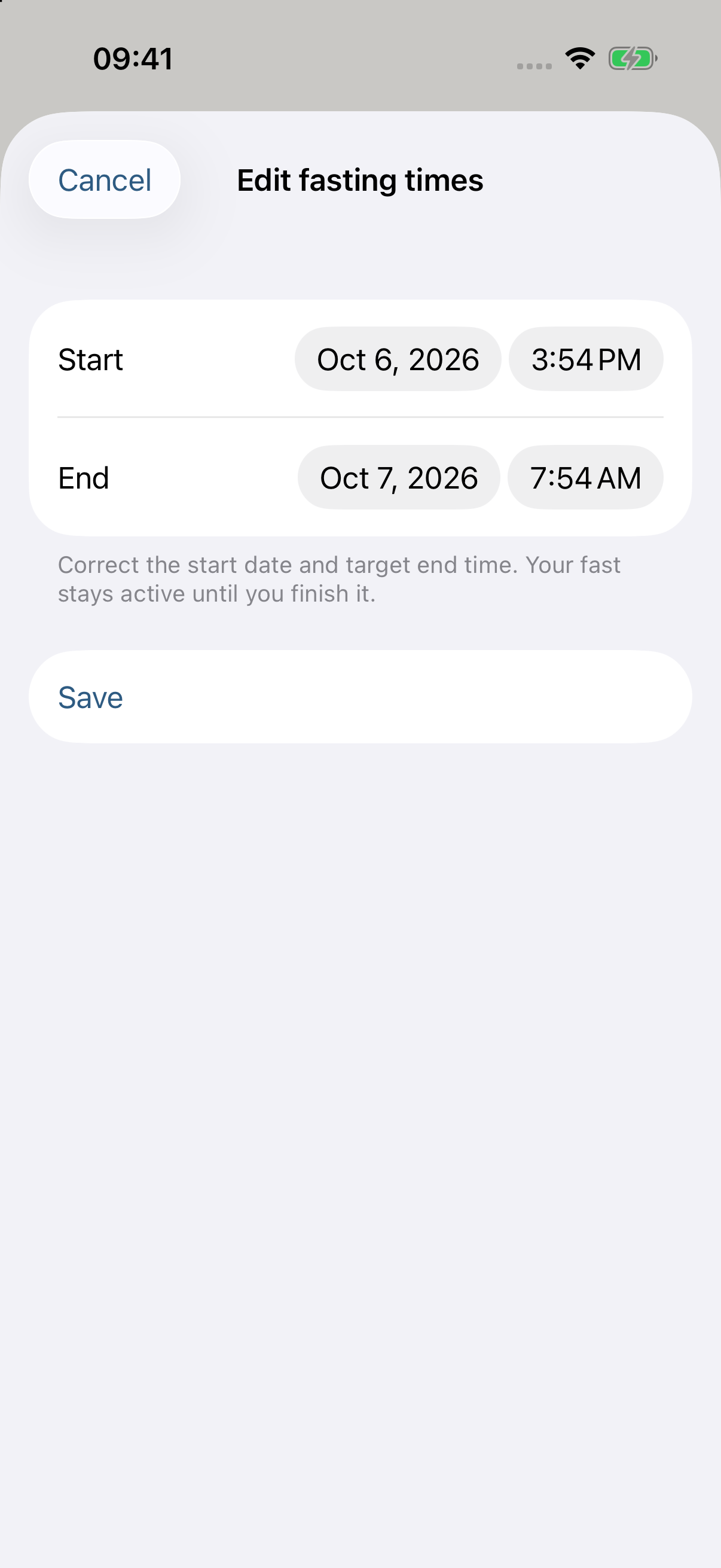
- Start a fast if you have not already. During an active fast, tap the Start or End time beneath the dial. This opens Edit fasting times.
- Set the Start and End date and time, then tap Save. Use Cancel to leave without applying the edit.
The start cannot be in the future. The end must be after the start, and the fasting interval must fit within 72 hours. The app checks your entries before saving.
Changing a target end time adjusts the active timer. It does not finish the fast or create a completed history record.
Finish when you decide
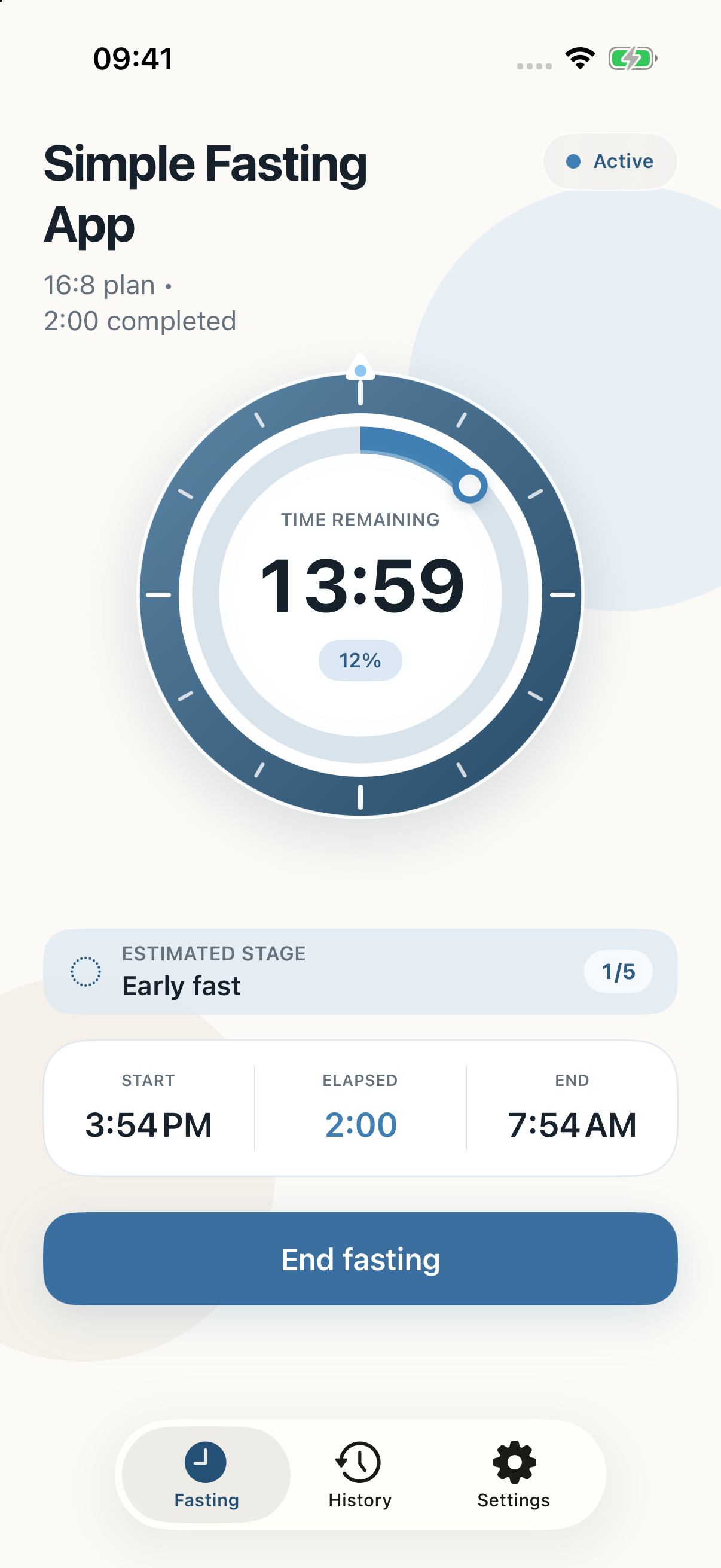
- While fasting, read the main dial and the Start, Elapsed, and End information below it.
- When you want to stop, tap End fasting.
- In the confirmation, choose End fasting to save the session with the actual time you fasted, or Continue to keep the timer running.
- Open History to see your saved fast.
Reaching the target does not automatically end or save your fast. When the target is reached, use Complete session and confirm to finish, or choose Later to keep fasting.
See the pattern in your history
- Open History. Fasting summary shows your total sessions, average duration, longest fast, and weekly average.
- In Monthly calendar, use the left and right arrows to change months. The daily rings show fasting windows across each day.
- Tap a day to open Day details. Review Total fasting, the session count, the 24-hour timeline, and each fasting interval.
A fast that crosses midnight contributes an interval to each calendar day it touches. Day totals describe time within that day; a whole session’s duration can therefore be longer.


Correct or remove a saved session
- In History, tap View all beside Fasting summary to open All fasts.
- Tap a session or its pencil control to open Edit fasting times.
- Adjust Start or End, then tap Save. Completed sessions need past times, with the end after the start. Choose Cancel to keep the original.
- To remove a session, swipe left on its row in All fasts, then tap Delete.
Check the session and dates before deleting. Your history is stored locally, so keep records you may want to refer to later.

Make the app comfortable to use
- Theme
- Open Settings and choose System, Day, or Night. System follows your device appearance.
- Primary color
- Choose Calm Blue, Coral, Amber, or Purple. This color is used for progress, selections, and highlights.
- Main timer
- Choose Time remaining or Time fasted for the large number inside the active dial.
- Fasting insights
- Turn Show estimated stages on or off. Open How stages are estimated to read the explanations and sources.
- Notifications
- Tap Manage notifications to open the app’s system settings, then allow notifications if you want a reminder at the target end time. Focus modes and iOS notification settings affect delivery.
- Data and privacy · About
- Review how local storage works and find your app version and build number. The rating link opens the App Store.

Read the estimated fasting stages
- With estimated stages enabled, tap the Estimated stage area during an active fast. You can also open Settings → How stages are estimated.
- Browse the illustrated stages and expand their explanations.
- Follow Related sources when you want to read more.
Stage estimates follow elapsed fasting time. Their timing is approximate and can vary with meals, activity, and individual physiology.
The app does not measure blood glucose, ketones, or your metabolic response. These explanations provide general education and do not replace medical advice.

Check progress outside the app
Add the Home Screen widget
- On your iPhone Home Screen, touch and hold an empty area to enter editing mode.
- Open the widget gallery using Edit → Add Widget or the + button, depending on iOS.
- Find SimpleFast (the widget’s display name), choose Small, Medium, or Large, and tap Add Widget.
- Start a fast in the app to see its current state in the widget. Tap the widget to return to the app.
Use Live Activities
An active fast can appear on the Lock Screen. On a compatible iPhone, it can also appear in Dynamic Island. Allow Live Activities for the app in iOS settings if the system offers that option.
If a widget or Live Activity looks out of date, open the app once. Check system permissions and allow time for iOS to refresh. Widget refresh timing is controlled by iOS.
Take the timer to Apple Watch
- Install and open the companion app on your paired Apple Watch.
- Tap the timer dial to open Controls.
- While idle, use Choose fasting plan, then Start my fast. During a fast, check elapsed and remaining time from the dial.
- Use Finish fast and confirm when you are ready to stop. Use Refresh to request an update.
The Watch can keep a fast locally while disconnected. Sync pending means changes are waiting to reach the paired device. Open the app on both devices and let them reconnect before expecting the same state on each.

Use the app’s Siri and Shortcuts actions
- Choose a plan in the app first.
- Open Settings → Siri, then the app shortcuts link to see the actions available in your system language.
- Try the example shown in Settings: “Hey Siri, start my fast in SimpleFast.” If iOS asks, choose Turn On to allow it.
- Follow any request for a duration, date, permission, device unlock, or confirmation. You do not need to create a personal shortcut for the app’s built-in actions.
Use the shortcut collection to find the exact action and wording for your language. It includes:
- Start my fast and Finish my fast.
- Time remaining, Time fasted, and My fasting plan.
- Change start time, Change target time, and Extend my fast.
- Manage fasting: start a timed fast, set the next plan, or show remaining or elapsed time.
- Fasting history: review your last duration, seven-day average, or open your history.

Starting while a fast is already active preserves the current fast. Set my next fasting plan changes the next session’s plan; it does not change the active fast’s dates. Siri availability and wording depend on your language, device, and system settings.
A little help when you need it
If a reminder is missing, check Settings → Notifications → Simple Fasting App in iOS and review your Focus settings. If Siri cannot find an action, open the app once, check its Siri permission, and try an action from the app’s Shortcuts collection.
Your records are stored on your device. The app has no account, advertising, subscription, analytics, or developer-server upload of your fasting data. Paired iPhone and Watch installations exchange session events; do not assume your history will automatically transfer to a new device.
For help, email simplefastingapp@cemiyet.co. Include your app version, device model, system version, and the steps that led to the issue. Please leave out health information and other sensitive personal data.
A short health note. Simple Fasting App is for personal tracking and education. It does not provide medical advice, diagnosis, or treatment, and fasting is not appropriate for everyone. If you have a health condition, take medication, are pregnant or breastfeeding, or have a history of disordered eating, speak with a qualified health professional first.